
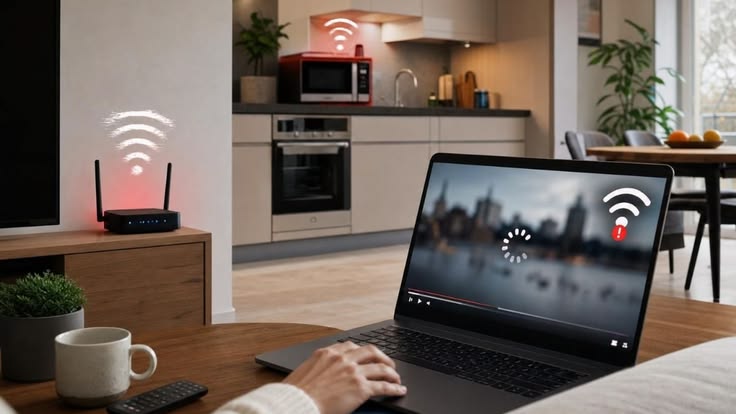
Learning how to improve Wi-Fi coverage can make a noticeable difference to everyday internet use, especially in larger homes where weak signals and Wi-Fi dead zones can make streaming, video calls and browsing frustrating. Walls, floors, furniture, appliances and the distance between your devices and router can all affect wireless signal strength. Fortunately, you can often improve your home Wi-Fi coverage without immediately upgrading your entire internet plan.
Why Does Wi-Fi Coverage Become Weak?
Wi-Fi signals become weaker as they travel farther from the router. Physical obstacles can make the problem worse, particularly in homes with thick walls, multiple floors or large areas between rooms.
Common causes of poor internet coverage include:
- Router positioned in a corner
- Multiple walls between router and devices
- Concrete or brick construction
- Large furniture blocking the signal
- Poorly configured Wi-Fi settings
Before buying additional equipment, identify whether the problem is actually Wi-Fi coverage or your internet connection itself. If your wired connection is already slow, adding an extender will not increase the speed supplied by your internet provider.
Improve Wi-Fi Coverage by Moving Your Router
Router placement is one of the easiest and most affordable ways to improve Wi-Fi coverage.
A router works best when it is positioned relatively centrally within the area you want to cover. Placing it in a basement corner or inside a cabinet can limit how effectively its signal reaches other rooms.
Where Should You Put Your Router?
Ideally, position your router:
- Near the centre of your home
- In an elevated location
- Away from large metal objects
- Away from enclosed cabinets
- Away from major sources of interference
If your router is currently next to an exterior wall, moving it closer to the centre of the house may improve coverage without requiring additional hardware.

Identify Your Wi-Fi Dead Zones
Before changing your setup, walk around your home and identify where the connection becomes unreliable.
A Wi-Fi dead zone is an area where the wireless signal is extremely weak or unavailable. You may notice symptoms such as websites taking longer to load, video calls dropping, buffering during streaming or devices repeatedly disconnecting.
Create a simple map of your home and identify:
- Strong-signal rooms
- Weak-signal rooms
- Areas with complete dropouts
- Locations where multiple devices struggle
- Upstairs or downstairs areas with poor coverage
This helps determine whether you need better router placement, an extender or a whole-home mesh system.
Keep Your Router Away From Interference
Your router competes with other wireless and electronic devices for a clear environment. Some household equipment and neighbouring Wi-Fi networks can contribute to interference.
Try to keep your router away from:
- Microwaves
- Bluetooth-heavy equipment
- Large metal objects
- Thick walls
- Other wireless transmitters
- Enclosed entertainment cabinets
The exact impact varies by home, but reducing unnecessary interference can help maintain more consistent wireless signal strength.
Update Your Router and Firmware
Older networking equipment may struggle to deliver consistent performance when a home contains numerous modern devices.
Your router’s firmware can also contain performance improvements and security updates. Check your manufacturer’s instructions for available updates rather than assuming the router is automatically running the latest software.
If your router is several years old and your household has added smart TVs, gaming consoles, cameras, tablets and other connected devices, replacing it may provide a more meaningful improvement than repeatedly adjusting settings.
Use the Right Wi-Fi Band
Modern routers often support multiple wireless bands. Depending on your router, these may include 2.4 GHz and 5 GHz, with newer equipment also supporting newer Wi-Fi technologies and additional frequency bands.
The 2.4 GHz band generally offers greater range and can travel through obstacles more effectively, while 5 GHz can provide higher performance over shorter distances.
A Simple Rule
Use the band that best matches the location and needs of the device.
- 2.4 GHz: useful for greater range and some smart-home devices
- 5 GHz: useful for nearby high-bandwidth devices
- Newer supported bands: useful for compatible modern devices
Your router may automatically choose the appropriate band, depending on its settings.
Try a Wi-Fi Extender for a Specific Weak Area
A Wi-Fi extender can be useful when one particular room has poor coverage. It receives the existing wireless signal and rebroadcasts it to extend coverage.
However, placement matters. Installing an extender in an area where the original signal is already extremely weak may produce disappointing results.
Place the extender somewhere between the router and the weak area, where it can still receive a reasonably strong signal.
An Extender May Work Well If:
- Only one or two rooms have weak coverage
- Your home is relatively compact
- You want an affordable solution
- You don’t need advanced whole-home networking features
If several rooms have persistent problems, consider a mesh system instead.

Consider Mesh Wi-Fi for Larger Homes
Mesh Wi-Fi systems use multiple coordinated nodes to provide wireless coverage across a larger area. Instead of relying on one router to reach every room, additional nodes can be positioned throughout the home.
This can be particularly useful in:
- Large houses
- Multi-storey homes
- Homes with thick walls
- Long floor plans
- Properties with multiple Wi-Fi dead zones
A mesh system can create a more unified home network, allowing devices to move between coverage areas more smoothly.
However, the quality of the system and node placement still matter. More nodes are not always better; placing them too far from one another can weaken the connection between them.
Frequently Asked Questions
How can I improve Wi-Fi coverage at home?
Start by moving your router to a central, elevated and unobstructed location. If weak areas remain, consider a Wi-Fi extender or mesh Wi-Fi system depending on the size and layout of your home.
Why do I have Wi-Fi dead zones?
Dead zones can result from distance, walls, floors, interference, router placement or outdated equipment. Identifying where the signal becomes weak can help determine the most appropriate solution.
Is a Wi-Fi extender better than mesh Wi-Fi?
It depends on your home. An extender can be suitable for a single weak area, while mesh Wi-Fi is generally better suited to larger homes or multiple areas with persistent coverage problems.
Does moving my router improve wireless signal?
Yes, router placement can make a significant difference. A central, elevated and unobstructed position can help distribute the signal more evenly throughout the home.
Can too many connected devices slow down Wi-Fi?
They can contribute to network congestion, especially when multiple devices perform high-bandwidth activities simultaneously. Reducing unnecessary connections or using Ethernet for stationary high-demand devices can help.
Conclusion: Build Better Wi-Fi Coverage Room by Room
The best way to improve Wi-Fi coverage is to start with the basics rather than immediately buying expensive equipment. Optimise router placement, identify Wi-Fi dead zones, reduce interference and make sure your networking equipment is up to date.
If those steps don’t provide enough home Wi-Fi coverage, a Wi-Fi extender can help with a specific weak area, while mesh Wi-Fi is often better for larger homes with multiple coverage problems. Ethernet can also reduce wireless congestion by connecting stationary high-demand devices directly to your network.
Ready to improve your home’s connectivity? Explore AT&T’s internet and Wi-Fi options to find a setup designed to keep your devices connected across more rooms.